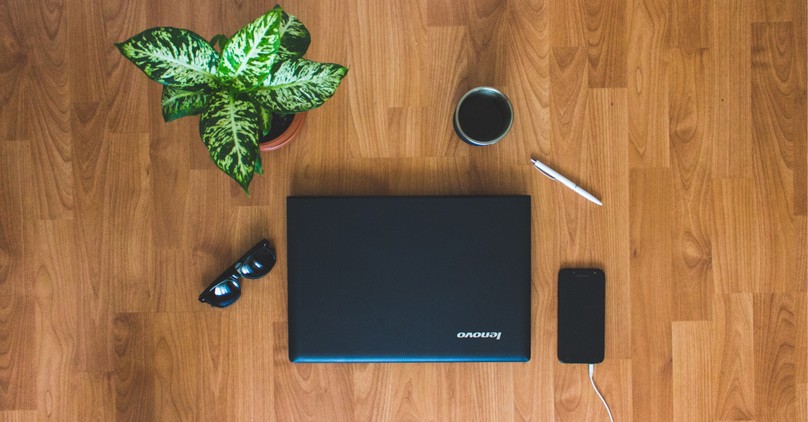
When we think of goals and decluttering, we usually think of New Year’s Eve and spring. We set goals on New Year’s and spring clean when the weather gets warmer. We frequently clear out attics, garages, closets, bookshelves, and similar spaces. But how often do we do a digital declutter? This isn’t something we think about until we are looking for a file, a photo, or a receipt on our computer. Here are some ideas for a fresh reset for your computer and your digital life.
Why June Is the Perfect Time for a Digital Reset?
June is the perfect time to declutter your digital life. We’re only halfway through the year, so going through six months' worth of stuff is easier than a year's worth. However, if you haven’t done a digital declutter in a while, it may take you longer. Regardless, it’s a great idea to do a digital declutter, whether you have a lot of files to go through or minimal files.
Doing a purposeful review of your devices' inboxes, apps, passwords, notifications, files, and online habits will help you in the long run.
Start with a Simple Digital Audit
A digital audit doesn’t have to be complicated; it’s best to keep things simple. Start with your inboxes for each email provider. Next, go through the apps on your computer and phone and delete what you don’t use or don’t need.
Third, review your notifications and delete anything you don’t need.
Fourth, go through your files and downloads and delete anything that isn’t useful or that you don’t need. It’s very easy to download workbooks, checklists, tips on XYZ, and then let them sit on your computer. I’ve done this a lot, and then I never get to everything I’ve saved. I actually need to do this myself soon because I’ve got a backlog in my downloads. I also go through my computer bookmarks to see what I no longer need.
Some benefits of conducting a digital audit include clarity rather than staring down a long list of emails, files, folders, or bookmarks. It will help reveal waste, such as files and folders you no longer need. It will highlight risks, such as weak passwords, so that you can create stronger, more secure ones. It will improve your decision-making moving forward because you will have less to deal with. A quick ‘yes, I’ll keep this’ or ‘I don’t need this’ will suffice.
Clear Out Your Email Inbox and Unsubscribe Ruthlessly
Start with your inboxes for each email provider. Make sure you’ve read everything that's come in, and as you go through it, delete what isn’t useful to you anymore and unsubscribe from it.
You may also want to go through your folders and delete anything that isn’t useful. Or you may have a useful folder, but you don’t need all the info that’s in there. For example, I follow a few work-at-home websites and keep every email they send me. Over the years, I let them accumulate, and a few months ago, I deleted emails from as far back as 2018.
Now I save every email, then at the end of the year I go through them again and delete the rest, keeping only what I think will be useful. For example, general advice such as tips for succeeding in an online interview or methods for optimizing your resume. Evergreen things.
Tidy Up Your Desktop, Downloads, and File Folders
This is where it’s easy to fall down the rabbit hole. You’re looking up a topic you’re interested in and wind up downloading several free ebooks, checklists, tips, worksheets, etc. Been there, done that. The next thing you know, you’re up to your eyeballs in information, and it needs to get organized.
Digital organization is very important because it will help with the following things;
● Not wasting time looking for files.
● Your desktop will become more appealing rather than distracting.
● Without the clutter, you can find important documents.
● Your computer will be easier to navigate
● Deleting old files will free up storage space.
Start with Your Desktop
A desktop should function as your temporary workspace, not like a storage closet. Your goal is to keep only the items you use regularly.
First, remove everything you don’t use daily. Ask yourself these questions: “Do I need this right now?” “Should this be in a folder?”, and “Is this a shortcut I still use?” If you can say no, then move it out of sight.
Next, create a few digital shortcuts. Instead of leaving loose files on your desktop, create shortcuts for frequently used items, such as work documents, project folders, frequently used apps, and cloud storage folders.
Third, limit your desktop categories by reserving only a few categories, like active projects, temporary files, and a few essential shortcuts.
Clean Out the Downloads Folder
If you’re like me, the downloads folder is one of your biggest clutter zones. It’s the place where I put files to look at ‘later’, but the problem is, later never comes. Here’s how you can fix this.
Start by sorting through your recent downloads, and for each item, decide whether to keep it, create a new folder/move it to the proper folder, delete it, or open and process it immediately. This is the fastest way you can claim space and reduce your confusion.
Next, remove any duplicate files and installers. Some files in downloads are temporary by nature, such as software installers, ZIP files after extraction, repeated copies of the same document, old screenshots, and unneeded PDFs. Look at all your files, and if they've served their purpose, delete them.
Third, it is important to move files immediately. If you download something important, make sure you move it to its final destination right away. This can include documents, personal records, work projects, etc. The less time it sits in the downloads folder, the less likely it is to disappear.
Also, use a sub-folder system if needed. Create subfolders in Downloads to help keep incoming files organized until you can file them properly.
Don’t forget to label your folders and files clearly and to keep your folder structure simple.
Organize Photos, Screenshots, and Duplicate Files
For those of you who take lots of photos and screenshots, organization is key. I can’t tell you how many times I’ve heard my best friend say, “I’m looking for the photo from the trip I took to X, but I can’t find it.”
Start by organizing your photos, consolidating them from your phone camera, cloud storage, external drives, messaging apps, social media downloads, and old computers or backup folders. Move everything into one central location—next, sort by event and year. Third, delete any blurry, accidental, or unnecessary photos. Once that is done, keep only the best versions of your pictures, meaning the best one or two of group shots, events, vacation landmarks, product photos, etc. Lastly, rename important files if need be.
Organize your screenshots separately, using a similar method. Also, don’t forget to remove duplicate files as you go.
Rearrange Apps and Remove Digital Distractions
Your apps should be sorted into three categories: essential, useful but nonessential, and distraction-heavy. Get rid of what distracts you and keep what helps you. Rearranging apps can help with better habits. Hiding that shopping app will reduce your distractions and prevent you from accessing it at work. As you sort, group similar apps to make them easier to find. You will also want to turn off notifications that drag you in, like news and social media notifications. Don’t forget to delete apps you rarely use.
Refresh Passwords and Strengthen Account Security
Go through and refresh your passwords on all accounts if you haven’t changed them recently. Don’t forget to write them down, add them to a password manager, or use whatever other method you choose so you don’t lose or forget them.
Clean Up Cloud Storage and Back Up Important Files
Cloud storage is great, but it needs cleaning up, too. First, review what you actually need, and before you delete anything, inspect your cloud storage and sort files into broad categories. Ask yourself some questions like, ‘Do I really need this?’ or “Is this file stored somewhere else already?” or “Does this file contain important information that I should back up?”
Next, remove duplicate and redundant files. Third, organize your files into clear folders so you know what each folder contains. Instead of deleting all files, archive them so they remain active. Things to archive include finished projects, old tax documents, and completed schoolwork. Make sure you back up your most important files. Also, use the 3-2-1 backup rule: 3 copies of your important data, 2 different types of storage, and 1 copy stored offsite, such as a hard copy.
Make sure you choose the right backup method, like an external hard drive or SSD, a cloud backup service, a secondary cloud storage account, or network-attached storage. Do your research to figure out what is best for your needs. Don’t forget to automate backups when possible and to keep sensitive files secure using strong passwords, 2-factor authentication, and reviewing permissions on shared cloud files.
Set Boundaries for Screen Time and Notifications
It’s easy to get sucked into a rabbit hole while researching or scrolling through social media. Therefore, setting boundaries is important. It protects your work, study, and personal time.
Start by observing your current habits and ask yourself, “How often do I check my phone without thinking?” “Which apps are most distracting?” and “How do I feel after long periods online?” Be honest with yourself.
Next, set screen time limits for yourself. No screens are allowed at dinner, in the bedroom, or in the bathroom. Create screen-free times when you will not use your phone or tablet, for example, during family time, at mealtime, or the hour before you go to bed.
Next, set daily limits for your favorite apps and set intentional check-in times. For example, I will check the news during my first 15-minute break, or check in with my kids during my lunch break. This will help keep you focused at work.
Tame notification overload by turning off what isn’t really important. Those social media pings can wait until later. What about the important message from your spouse regarding picking up the kids? These are the notifications that really count.
Create a Maintenance Routine for a Clutter-Free Digital Life
Set up your own maintenance routine to keep your digital life clutter-free. If you can take a day on the weekend to go through files once a month, great. If not, I would do a digital audit every three months. Keeping on top of things will help keep your devices and your life organized.
Decluttering our digital lives is not something we always think about, but like everything else, it needs to be done. Therefore, choose a day to organize your digital clutter. Your computer and your brain will thank you.
Photo credit Vlad Bagacian/Unsplash